
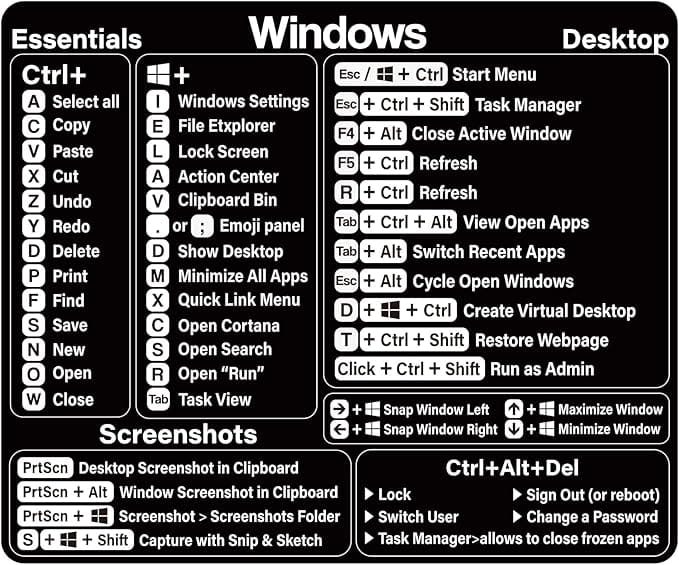
In today’s fast-paced world, efficiency is key. Whether you’re a student, professional, or casual user, mastering PC shortcuts can save you valuable time and make your workflow smoother. Here’s a comprehensive guide to some of the most useful keyboard shortcuts that can help you become more efficient on your PC.
General Shortcuts
- Ctrl + C: Copy the selected text or item.
- Ctrl + X: Cut the selected text or item.
- Ctrl + V: Paste the copied or cut text or item.
- Ctrl + Z: Undo the last action.
- Ctrl + Y: Redo the action you just undid.
- Ctrl + A: Select all items in the current window or document.
- Alt + Tab: Switch between open applications.
- Windows Key + D: Show or hide the desktop.
- Ctrl + S: Save the current document or file.
- Ctrl + P: Print the current document.
Navigating Text
- Ctrl + Left/Right Arrow: Move the cursor one word to the left or right.
- Ctrl + Up/Down Arrow: Move the cursor up or down one paragraph.
- Shift + Arrow Keys: Highlight text one character at a time.
- Ctrl + Shift + Left/Right Arrow: Highlight text one word at a time.
- Home: Move the cursor to the beginning of the line.
- End: Move the cursor to the end of the line.
- Ctrl + Home: Move to the beginning of the document.
- Ctrl + End: Move to the end of the document.
Managing Windows and Applications
- Windows Key + Left/Right Arrow: Snap the current window to the left or right half of the screen.
- Windows Key + Up Arrow: Maximize the current window.
- Windows Key + Down Arrow: Minimize or restore the current window.
- Alt + F4: Close the active window or program.
- Ctrl + Shift + Esc: Open Task Manager directly.
- Windows Key + E: Open File Explorer.
Browser Shortcuts
- Ctrl + T: Open a new tab.
- Ctrl + W: Close the current tab.
- Ctrl + Shift + T: Reopen the last closed tab.
- Ctrl + Tab: Switch to the next tab.
- Ctrl + Shift + Tab: Switch to the previous tab.
- Ctrl + L or F6: Focus the address bar.
Tips for Mastering Shortcuts
- Start Small: Pick a few shortcuts to learn each week.
- Practice Regularly: Use them in your daily tasks to build muscle memory.
- Customize Your Shortcuts: Many programs allow you to set your own shortcuts.
- Use Shortcut Cheat Sheets: Keep a list handy until you memorize them.
By incorporating these shortcuts into your routine, you can navigate your PC more quickly and efficiently, leaving you more time to focus on what truly matters. Happy shortcutting!

